Lightning Bolt Computers (734) 395-9367 http://www.lightbolt.com
6
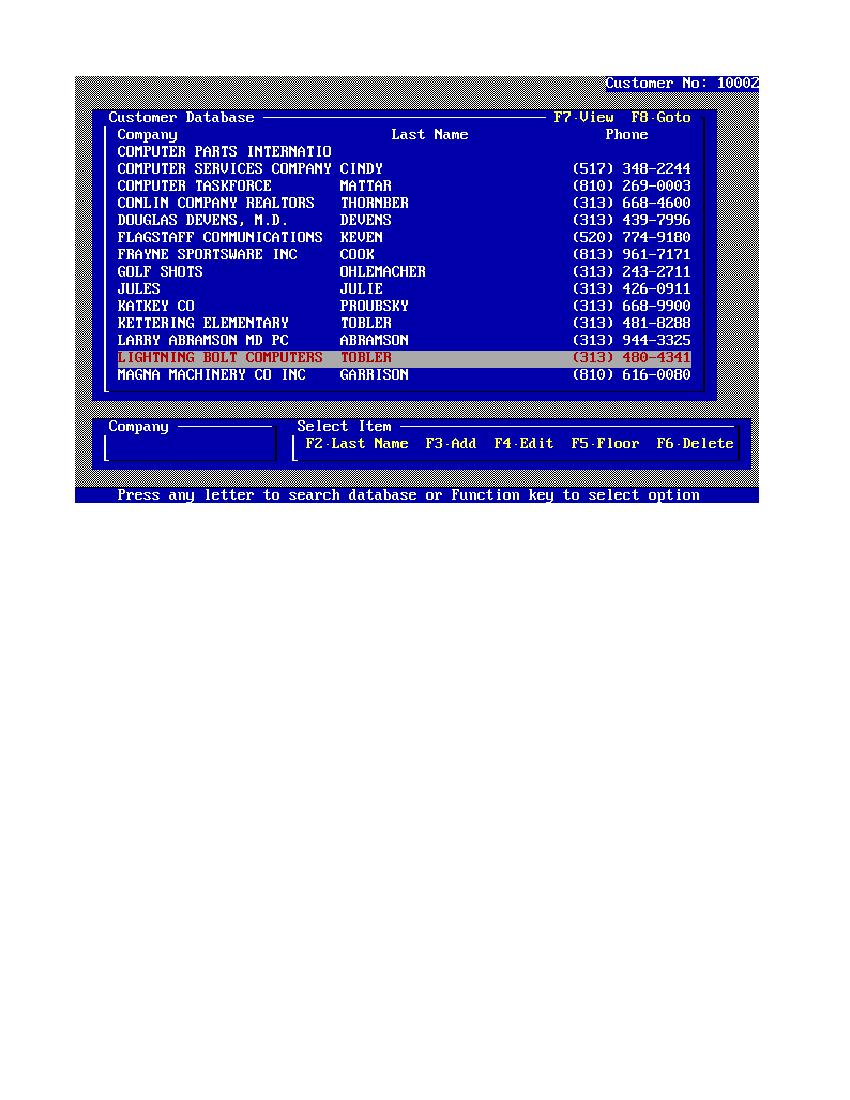
Customer Pick Screen
* You have a number of functions available to you from the customer screen. First use the (up) and (down) arrow keys to highlight any
customer of your choice and press
E
. This will bring you back to the main work screen and will fill in the customer information for you.
* If you wish to look up a customer by name you can type in the name or company and the program will bring you to that record or closest
to it. If you press
E
now the program will bring you back to the main work screen and fill in customer information. The name you type
will be displayed in the lower left box on the screen. Back space will delete letters to the left of the cursor and move the list accordingly.
* The
@
function key will change the list order from last name order to company order and vise versa. Searches will be performed on the
order selected.
* The
#
function key will allow you to add new customer information. Type in the appropriate information in the field and press (Enter)
to continue to the next field. Fill in as much information as possible about the customer so you can use this information later for mail and
customer information lists. You will be asked to select CUST TYPE, AD SOURCE, INQUIRE and TERMS if you set these Options up in
the system configuration menu. Do this by moving your
ZY
keys (up) and (down) to highlight a item and press
E
to select. If the list
is longer than can be displayed in the box it will scroll up or down to show you more. You will also need to select the tax status and price
level of the customer. A pop-up box will then ask you to save or abort your additions or changes.
* The
$
function key will bring up the edit screen on the customer currently highlighted. Here is where you will make any changes to the
active customer.
* The
%
function key places counter (floor sale) as the current customer. This is for customers you do not wish to keep records on.
* The
^
function key is used for deletion of the currently highlighted customer. A option box will appear asking you for (YES or NO) to
delete.
X
is like NO and will bring you back to the customer pick screen.
* The
&
function key will let you look at the complete customer file when pressed the highlighted customer will be shown, press any
other key to close out the view function.
* The
*
function key will allow you to search a customer by whole words or phrases instead of one letter at a time. Press
*
then type in
search criteria, press the (Enter) key to search.
* The
X
key will bring you back to the main work screen with no changes made.