Lightning Bolt Computers (734) 395-9367 http://www.lightbolt.com
8
Options
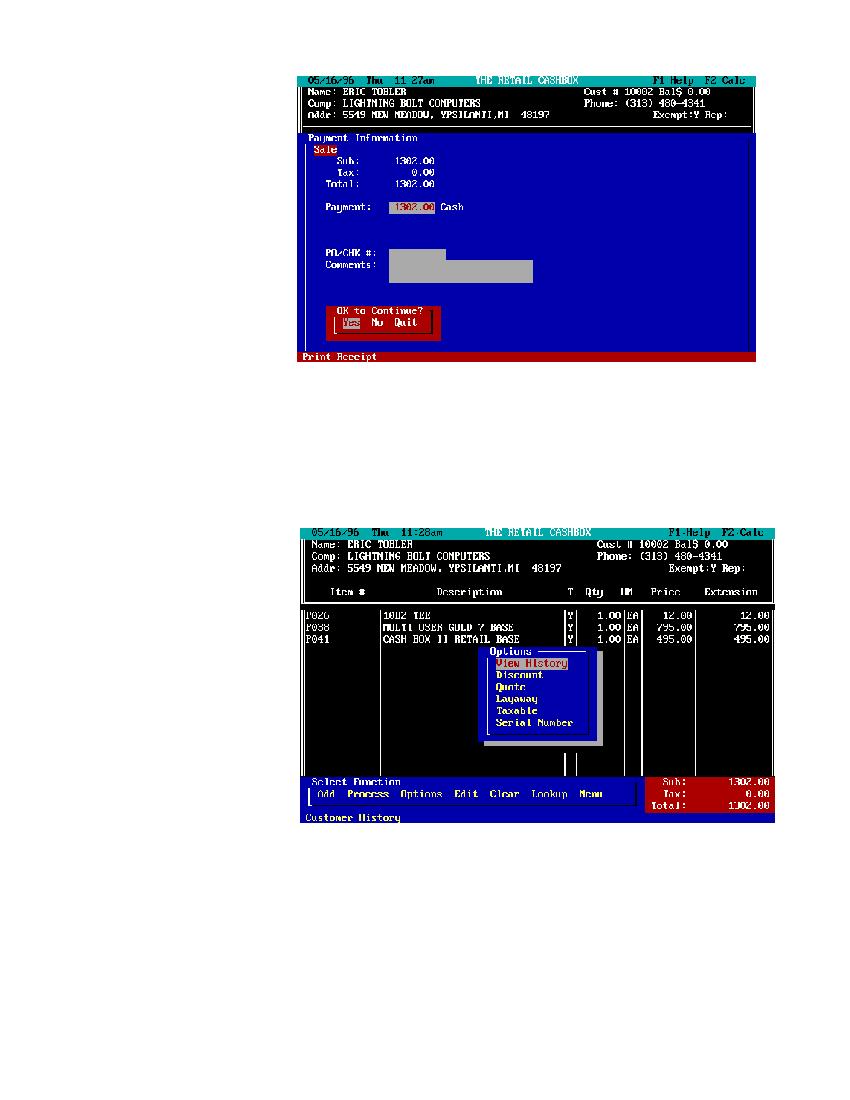
* From here you can access the following features, customer history, discount, quote, layaway, tax and serial number. Use the (
ZY
arrow) keys to move to your selection and press
E
.
Process Sale
When selecting sale you will be given multiple choice menus toel compile your invoice. The first is payment method with Cash, Check,
VISA/MC, AMEX, Discover, Account or Other as your choices. They all act the same with more information needed with charge cards.
You will be asked to type in the amount the customer has giving you or press
E
if the amount is the same as shown on the screen. If the
amount is more, then the system will ten you how much change to return to the customer. If the amount is less, then the system will
prompt you for payment method for the remainder of the balance. After making your choices the next box will ask you for PO or check
numbers, if none are required then just press
E
and continue. The same is true for comments. Your last function is to either press
E
on Yes and print your invoice, No to re-process information or Quit to go back to worksheet.
* If you used credit cards as payment methods you will be prompted for the number and expiration date or to swipe the card through the
credit card reader for automatic authorization. The system will not continue until this information is supplied.
*If you select check from the type of payment menu the customer file will be referenced to see if checks are allowed for this customer.