Lightning Bolt Computers (734) 395-9367 http://www.lightbolt.com
17
maintenance, and setup screens. You choose the option you would like to run by moving your arrow keys
ZY
and pressing
E
.
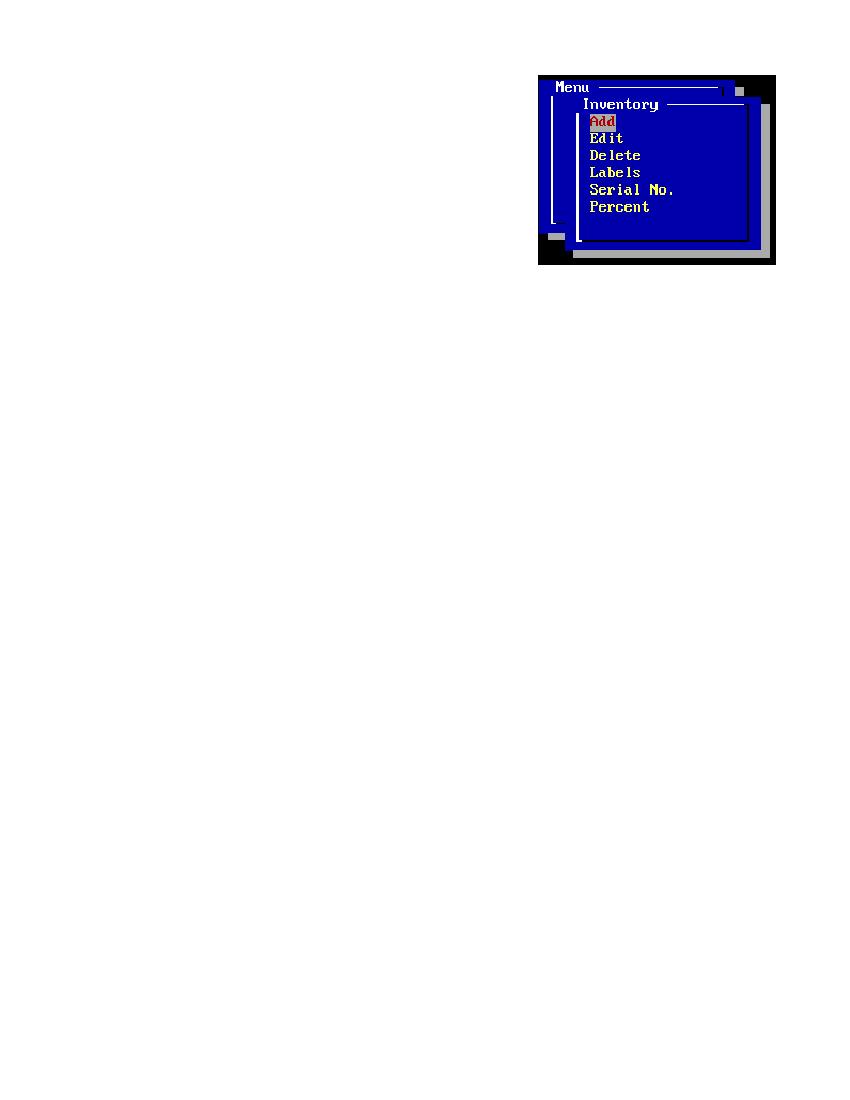
Inventory Menu
* From this menu you have the option of either adding, editing, or deleting an inventory item, or printing item labels. Also, you can set
serial numbers and set the retail price of your item with the percent function. Use your up and down
ZY
to highlight your choice and
press
E
.
* You can search or locate the item the same way as the add screen works on the main menu, by using
ZY
, typing in the product number
or using the bar code reader.
* If you choose Add then you will be brought to the add inventory menu. Your choices here are either standard for entering a single
inventory item, matrix for adding like items of different colors, sizes, styles ... or kits to add multiple existing inventory items into one item
to be sold as a kit.
* If you choose Edit then the inventory edit screen will appear. Use your (arrow keys) to select the item and press
E
. This will display
the existing inventory information for the item you have selected on the screen for you to make changes to.
* If you wish to delete an item select Delete from the inventory menu. A list of the inventory items will appear. Type in the number or
move the
ZY
to the correct item you wish to delete and press
E
. A brief description of the item to be deleted will be displayed and a
box asking you Yes or No to delete. Move your (arrow keys) to the right answer and press
E
. If you select yes, only reference to that
inventory item will be deleted.
* Serial No: This function will allow you change the serial numbers you set to your inventory items. By highlighting this function you will
be asked if you want to edit items that have been deleted press
E
to say no or press the letter
y
for yes. You will see a list of items
that you can edit by highlighting them and pressing
E
on.
* Percent: This function is used when you fill in the percent field of all inventory item. As an example if you set the percent field of item
(widget) to be 50 and the cost of this item is $10.00 then when you highlight the Percent function and press
E
the retail price of this
item will be set at $15.00. This function is global it will change all items that have a number set in the percent field. If the percent field is left
at (0) no changes will be made.
Inventory Menu
Station Setup for Networks:
One small note for network users. After the software is installed you will set-
up the first station. But every network station must be set-up. This is because
some stations could give a bigger discount if you sell both retail and at wholesale
prices. Each station is like another store, but they all share inventory and custom-
ers. If you have multiple stations, write down the set-up of the first and use it to
help you set-up each station. The set-up section is accessed by typing:
Menu, Set-up, Configure.