Lightning Bolt Computers (734) 395-9367 http://www.lightbolt.com
28
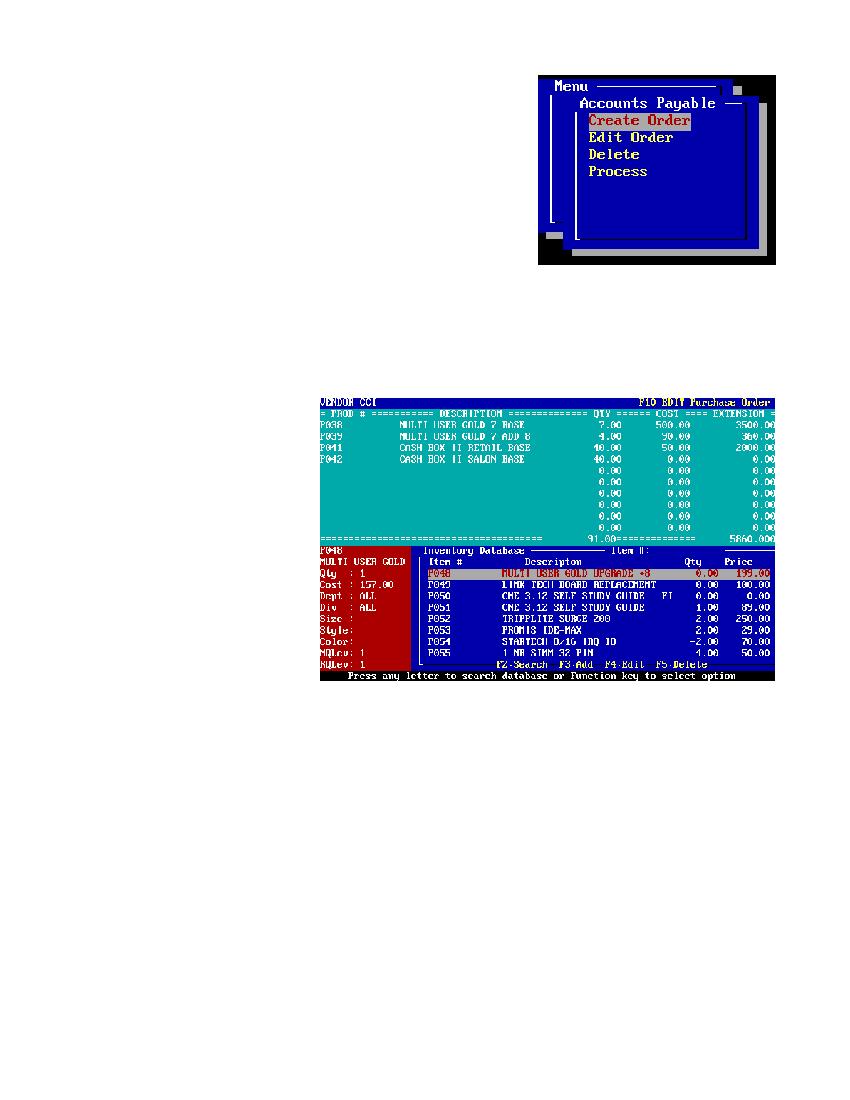
Accounts Payable Menu
* From this menu you can create, edit, delete and process purchase orders (PO�s) by using the (arrow keys) to highlight your choice and
pressing (Enter).
* No matter which option you select you will be prompted to select the vendor you would like to use. Do this by moving the (arrow
keys) up or down to highlight the vendor and press (Enter). Only the inventory items will be used for that vendor. If you are going to
edit or delete a PO then only those from this vendor will be used.
* DELETE PURCHASE ORDER: Pick the vendor and PO for that vendor that you want to delete. A small box will display asking you
Yes or No to delete. Select the option that you would like and press (Enter).
* All PO�s will be displayed in the same print format for add and edit. Use the (F10) key to print. (F9) or (Esc) will return you to the
menu.
Accounts Payable Menu
Create/Edit Purchase Order
CREATE PURCHASE ORDER: This can be used in two ways:
1 For ordering items.
2 To receive items and updating invetory for stock comming into the business..
The first step in creating a purchase order is to pick a vendor to buy from. Use the up and down (arrow keys) to highlight your choice
and press (Enter). After selecting the vendor all items in the inventory from that vendor will be displayed on the screen for you to select
from. Highlight your choice and press (Enter). After selecting an item to order you are taken to the left hand red box to enter order
information for that item. After entering your choices the item will be displayed on your purchase order on top. You can edit or delete
any mistakes with the (F10) key. After completing these steps for all the items to be ordered from this vendor you press (Esc). A Retail
box will appear asking you to save or abort this purchase order. Use your (arrow keys) to select your choice and press (Enter).
* EDIT PURCHASE ORDER: Runs similar to making PO�s. You first pick a vendor. A list of PO�s created for that vendor appears.
Move your (arrow keys) to select the one you would like to edit and press (Enter). Your order will be displayed. Press the (F10) key to
edit the order. Press (Esc) when done.
* By using the (F) keys you can add, edit or delete inventory items exactly as described under inventory.
Create/Edit Purchase Order