Lightning Bolt Computers (734) 395-9367 http://www.lightbolt.com
10
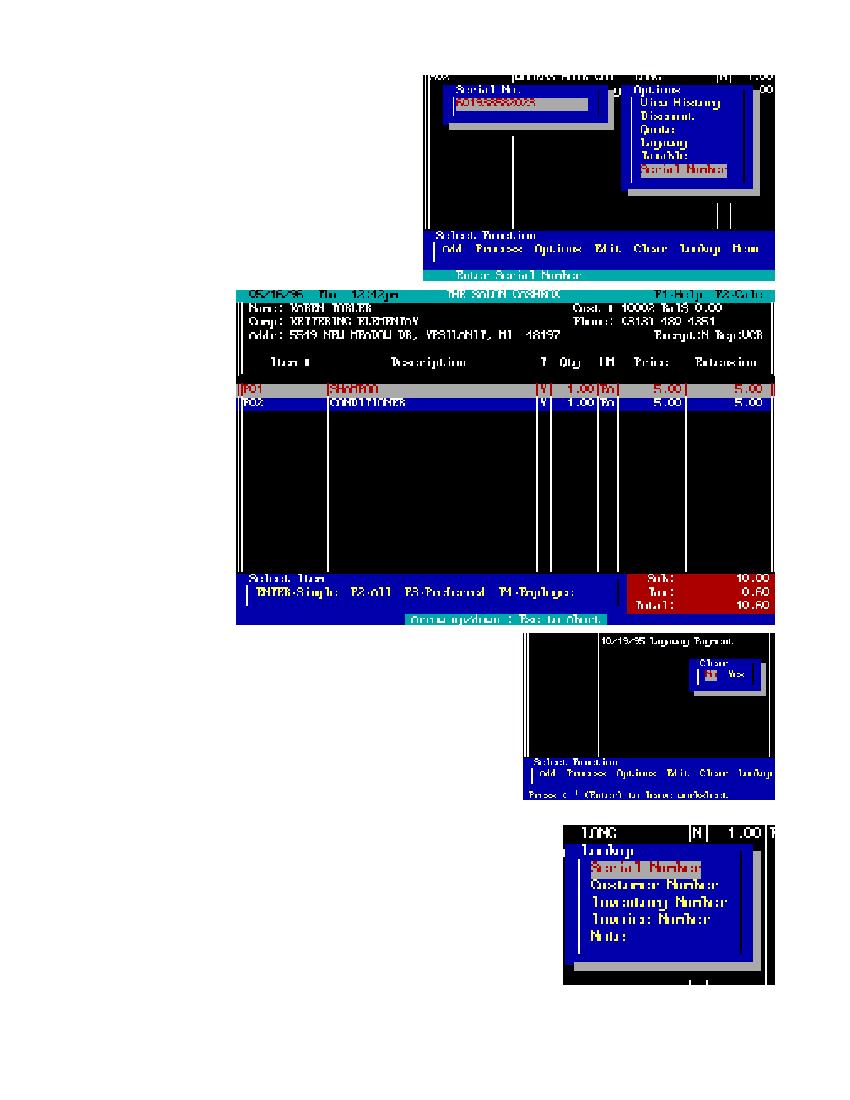
Serial Number
* By pressing
E
on this function you will bring up a small window for you
to type in a serial number to be added to the next line in your invoice. This
number will be displayed and kept on the customer invoice for later tracking
if needed.
Edit Work Screen
* From this function you will be able to perform two operations. If you have
a customer selected but no inventory item/s in the work screen, edit will
retrieve the customer record for you to make changes to. Do this exactly as you
would under Add Customer or Customer Maintenance. If there are inventory
items on the work screen edit will allow you to make changes to the work
screen. Move the
YZ
to select the item you would like to change and press
E
. If there are more items on
the screen than can be displayed
than use the
QRYZ
to scroll
up or down the list. This will
allow you to make changes to the
description, quantity and price.
You can also use the
=
key to
delete any item in the list. After
you have completed your
changes the program will return
you to the main work screen. If
you would like to return to the
main work screen without mak-
ing any changes then press
X
.
Clear
* If you select clear from the
main menu you will be prompted
for a Yes or No. Use your
QRYZ
to highlight one of
these and press
E
to return to
the main work screen with no
changes. If you select yes and
press
E
the work screen will
be cleared and a record of the transaction will be stored in the clear log for later review.
Lookup
* From here you will be able to quickly lookup basic POS information like serial number trace,
customer record retrieval by number, inventory explosion by number and invoice review by
number.
* SERIAL NUMBER: When you process a sale and add a serial number this function will retrieve
the customer and invoice where that serial number was assigned to. Select this option by
highlighting Serial Number with the
YZ
and pressing
E
. A small box will appear that asks you
for the serial number to search. Enter the number and press
E
. The program will search the
existing invoices and locate the serial number. If the proper serial number is found the invoice will
be displayed on the screen for your review. Press any key to return to the main work screen.
* CUSTOMER NUMBER: Select this option to quick retrieve basic customer information. A small box will
appear and ask you for the customer five digit number. Enter the number (10001 is Counter Sale) and if the
number is found a box will appear with basic customer information. Press any key to return to the main work
screen.
* INVENTORY NUMBER: Select this option by moving the
QRYZ
to highlight Inventory number and
press enter. A small box will appear and ask for the inventory number. Input the inventory number you would
like to find and the system will locate an exact match to the number you entered. If the inventory item is found
a box will appear with the inventory information. Press any key to return to the main work screen.
* INVOICE NUMBER: Move the
YZ
up or down to highlight this option and press
E
. A small box will
appear, type in the invoice number you would like to review and press
E
. If the invoice is found customer
and work sheet information will be displayed on the screen. Use your
QRYZ
to scroll inside detail
information up or down. Press any key to return to the main work screen.
* NOTES: you can tag notes to customers files from the Lookup menu option on the main work screen. Type in any notes you would like for that customer, use
the
=
and Backspace keys to delete items you no longer want. You can type up to 1600 lines per customer.
Cw
saves the changes,
X
aborts with no changes.