Lightning Bolt Computers (734) 395-9367 http://www.lightbolt.com
18
Word Processor
* The word processor supplied
with this program was designed
for very simple use. Basic func-
tions can be viewed with the
!
help key. You can use the
QRYZ
to move up, down, left
and right in your text. The
E
key will start a new paragraph on
the next line and the
=
and
(Backspace) keys can be used to
delete text.
* Use the
@
and
#
keys to ac-
cess the menus and
!
for help.
* By pressing
@
you will bring
down the menu for file access and
system configuration.
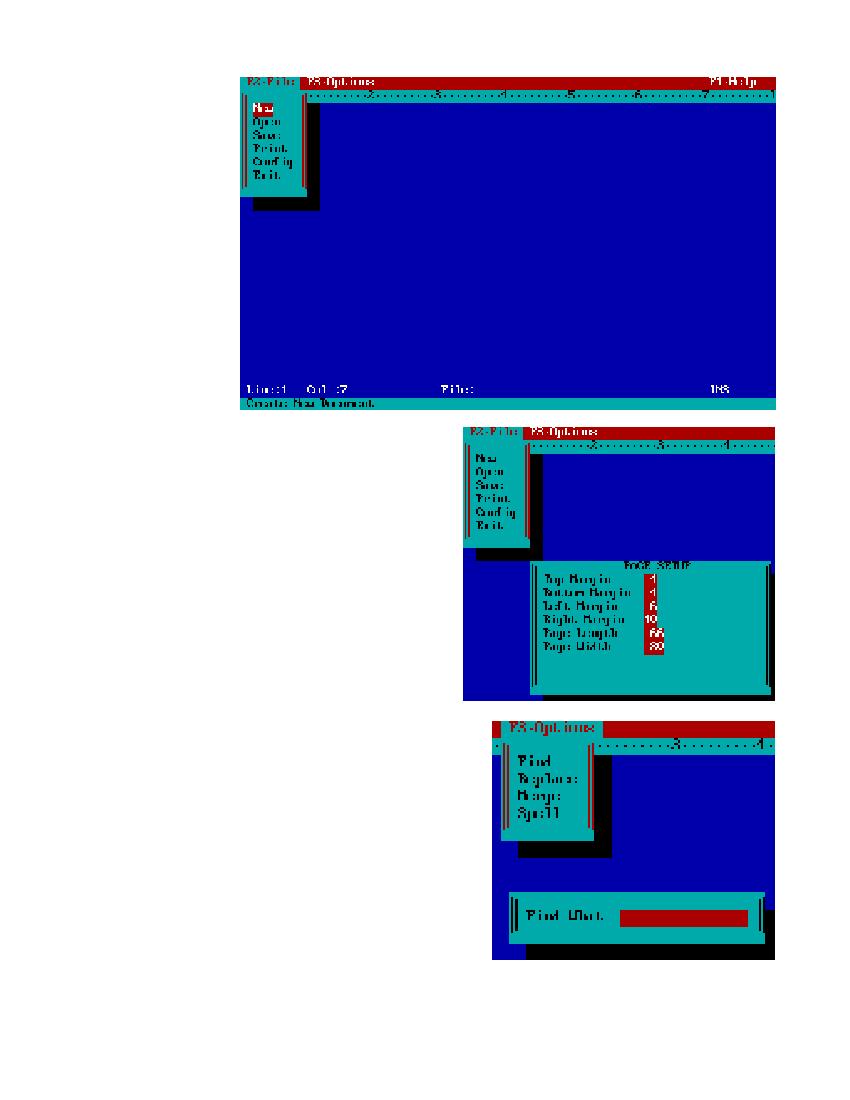
* NEW: is used to clear the word
processor screen and start a new
document. If there is work on the
screen that has not been saved the
system will prompt you to save the
file. The system will not let you
overwrite an existing file without
prompting you for overwrite or new name.
* OPEN: is displayed above and is used to open existing files for printing or editing.
A pick list of existing files will be displayed for you to choose from, move your cursor
up and down and press
E
to select the file to view.
* SAVE: is used to save existing work on the screen. If you try to overwrite an existing
file the program will prompt you.
* PRINT: will simply print your document.
* CONFIG: is system information, for example, margins and page sizes.
* EXIT: will exit you from the word processor and return you to the customer menu.
Word Processor Configure
* Basic word processor configuration information is stored in this menu option.
* Move the cursor down to configure and press
E
.
* Enter the information you would like for margins, page length and width and press
E
.
* A pop-up box will appear asking you to confirm changes. Press
E
on (Yes) and
your changes will be saved and applied to your current document. Press (No) and an
changes will be aborted.
Word Processor Find
* This is to locate user defined information in the existing document.
* Press
#
to pop-down the Options menu and select Find.
* A box will appear asking you to �Find What:". Simply type in the word you would like to
find and press
E
. The box will disappear and the text will be centered on the word you were
looking for, if found.
* Select find again and if you would like to find the same word it will already be in the �Find
What: � box. Press
E
on the word and the next occurrence of the
word will be found.
* Continue selecting find to locate your word or change the word to locate a different word.