Lightning Bolt Computers (734) 395-9367 http://www.lightbolt.com
20
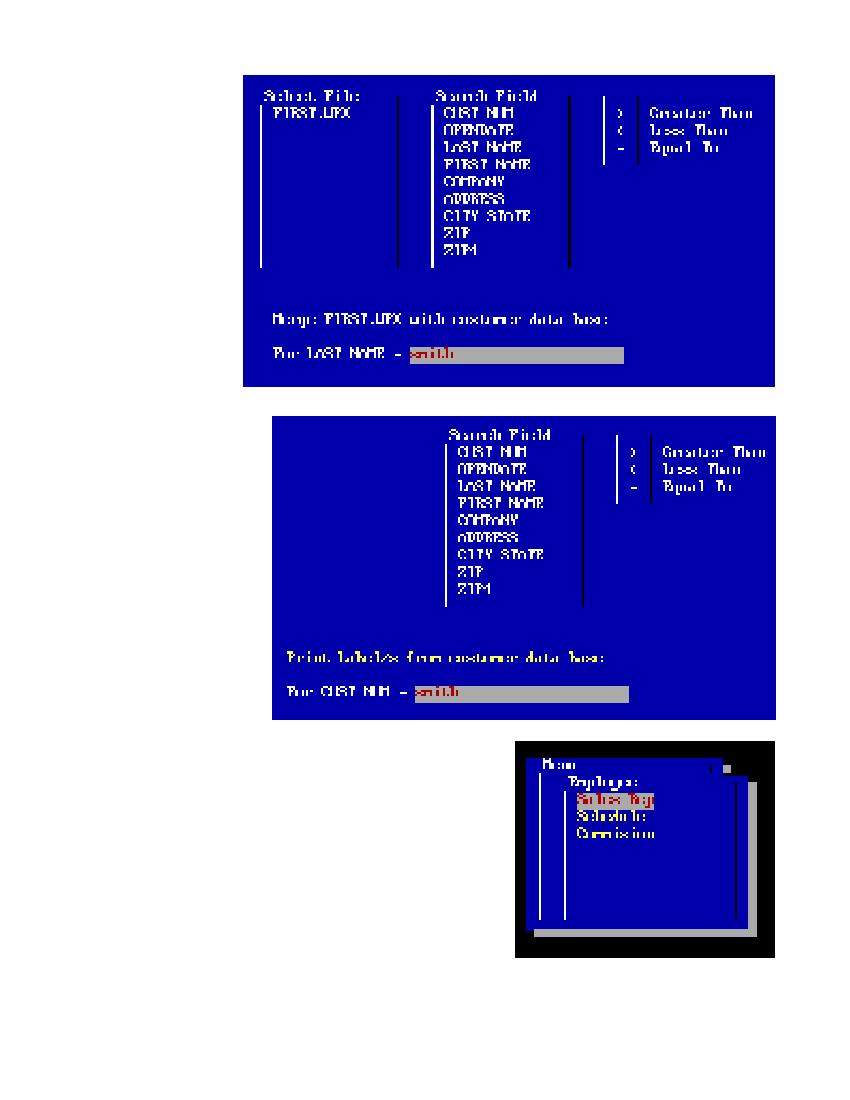
Customer Merge
* Select merge from the
customer menu.
* Use the YZ to move
the highlight up or down
and select a file devel-
oped with the word pro-
cessor for merging with
the customer data base.
* Select the search field
used to narrow the search.
If you would like an the
records select the
CUST_NUM field and
enter >0.
* Select the operator to be
used in the search equal,
greater or less than.
* Enter the search criteria
and press E.
* A list of matches will be
compiled and you will be
prompted to continue. Press
E y to continue or n and
E to stop.
* One letter for each customer
that meets the search criteria
will be printed with informa-
tion from the customer file.
Customer Labels
* Select labels from the cus-
tomer menu.
* You will be prompted to test
the setup of the labels in the
printer. If you would like to
test the printer press y and
E. A test print of three la-
bels will be printed. If the setup
is ok press any key to con-
tinue. If you would like to re-
test the labels, pressX to re-
print the test labels again.
* Select the search field used
to narrow the search. If you would like an the records select the
CUST_NUM field and enter >0.
* Select the operator to be used in the search equal, greater or less than.
* Enter the search criteria and pressE.
* A list of matches will be compiled and you will be prompted to
continue. Press E y to continue or n andE to stop.
Employee Menu
From this menu you will be able to set up Sales Rep�s, Schedule employees and look at commission
reports. To run one of these functions use your (arrow keys) up or down and press the
E
key.